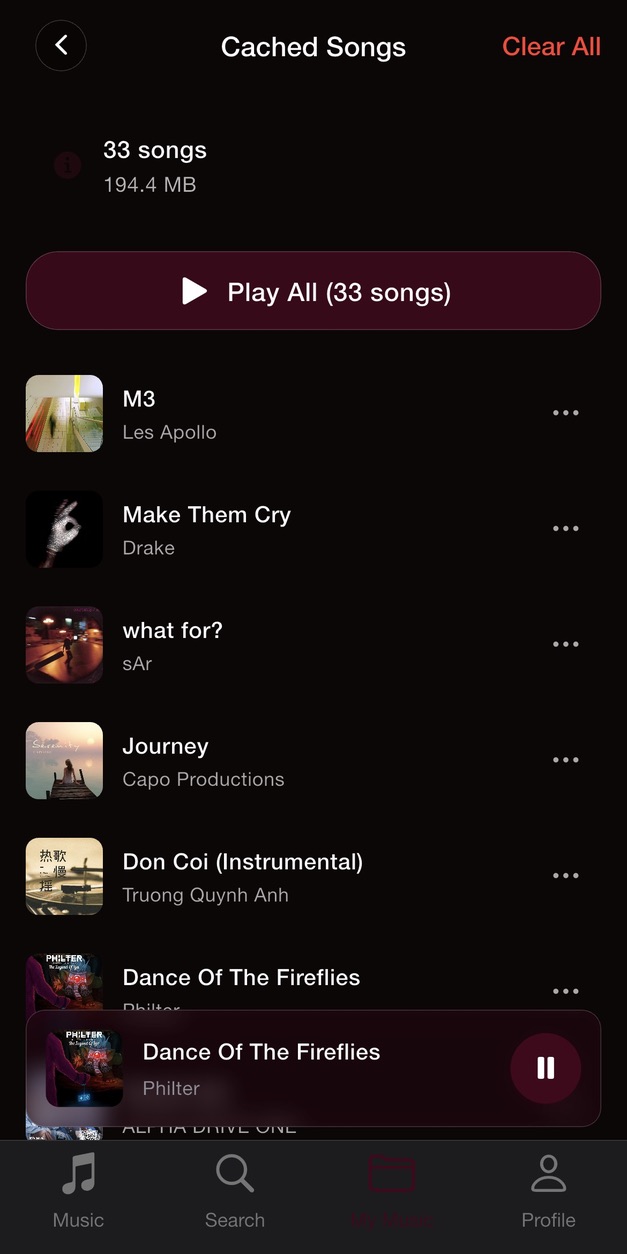
Cached songs and local files
Sha Music offers online streaming, offline caching, and local audio playback. Cached Songs contains audio saved by the app for later listening. Local Songs contains audio files you import yourself. Adding a song to your favorites or a playlist alone does not mean its audio is ready to play offline.
Before you disconnect
- While connected, use the app’s cache option for the songs you want to take with you. Allow caching to finish.
- Open My Music, then Cached Songs. Check that the tracks appear in the list.
- Temporarily turn off Wi-Fi and mobile data, then play a cached track to confirm it is available offline.
- You can also play audio you imported into Local Songs. Keep enough free storage for the music you want to retain.
Manage cached music
Cached Songs shows the number of tracks and the space they use. Clear All removes the cached audio, so those tracks may need a network connection and caching again before offline use. Keep original copies of your imported audio, and check your offline library before a trip rather than relying on a playlist alone.
Availability and playback
Searching for new music and streaming uncached audio require a connection. Online track availability can vary. If a song does not play offline, reconnect and check its cache status, or use a supported local audio file. Sha Music is free to use and supported by ads; see the App Store listing for the current version and device requirements.
Keep exploring